How to upload a student's Transcript and/or SAT/ACT scores?
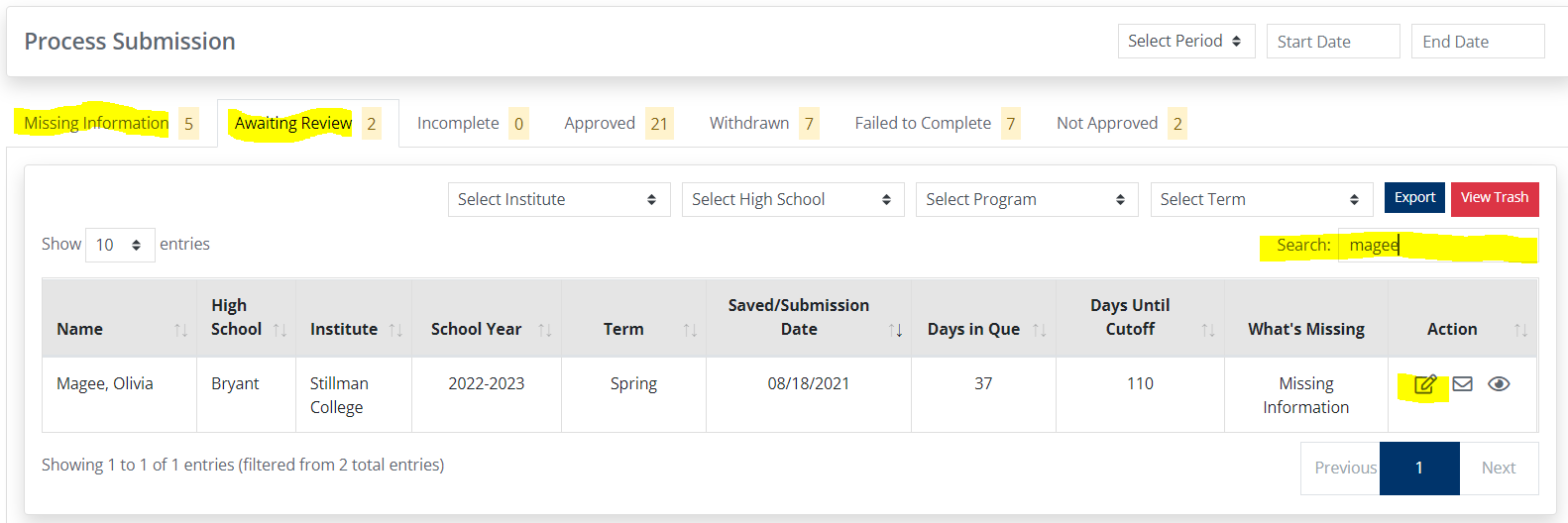
Navigate to Process Submission from the left hand panel. The student is likely either in the Missing Information or Awaiting Review tabs (highlighted below). Navigate to those tabs and search for the student's last name in the search bar in the top right hand corner(highlighted below). Then click on the Edit icon in the Action column (highlighted below).
If the student has already uploaded their transcript and/or ACT/SAT scores it will show up in the top right hand corner of their submission. See below:
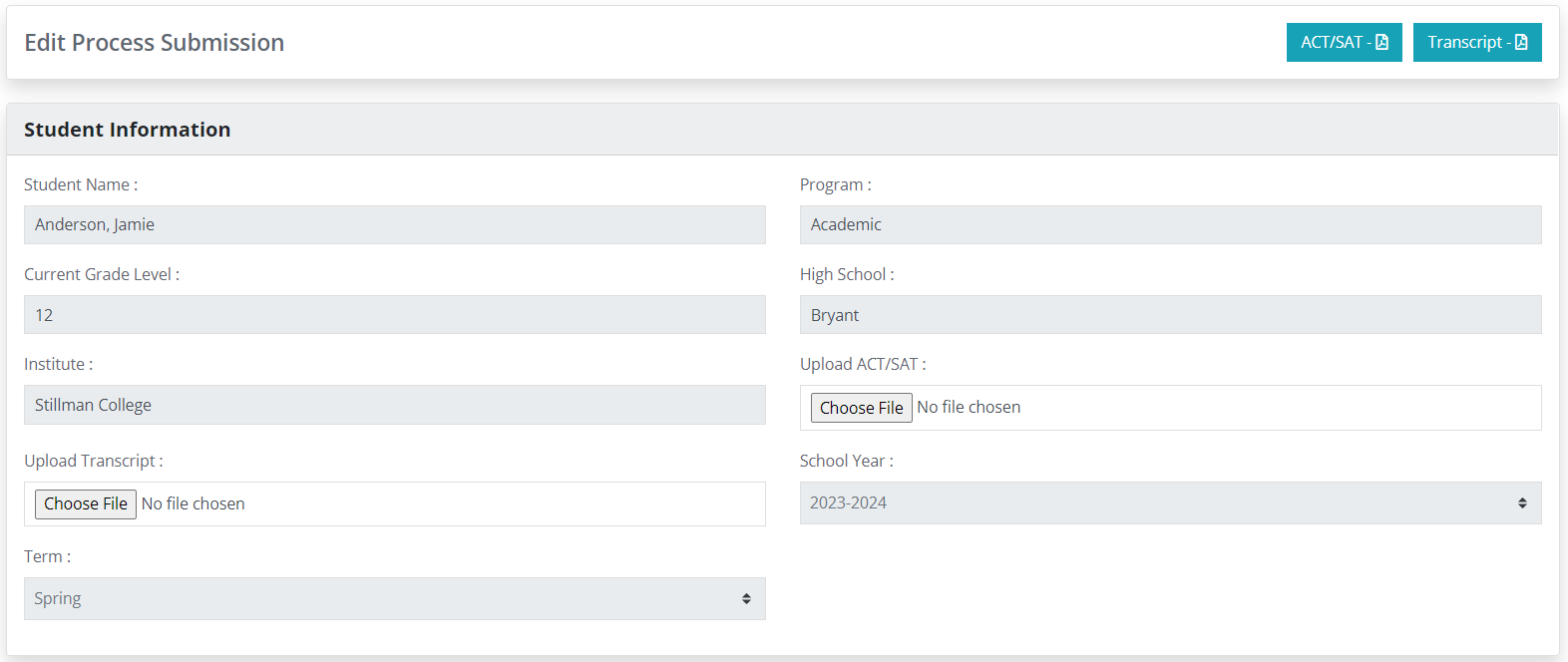
If the student has not yet uploaded and they have sent you their files to be uploaded, then you can select and upload the files in the body of of the Student Information under the Upload Transcript and the Upload ACT/SAT: fields.
If you are wanting to replace an already uploaded file, you can select "Choose File" again and it will replace the current file.
Related Articles
Student Access
Student Access Students can access the Pathways K12 system by navigating to https://pathways-k12.com/ . Select Create an Account. Select the Student tab. Enter your phone number. Enter your email address. Select the district where you are enrolled. ...How do I apply for multiple children?
When you first register for a Dual Enrollment profile, you will be asked to add your student's state ID number and their birthdate. This will begin the submission process for your first student. At the end of the submission process you will be asked ...